Step 1
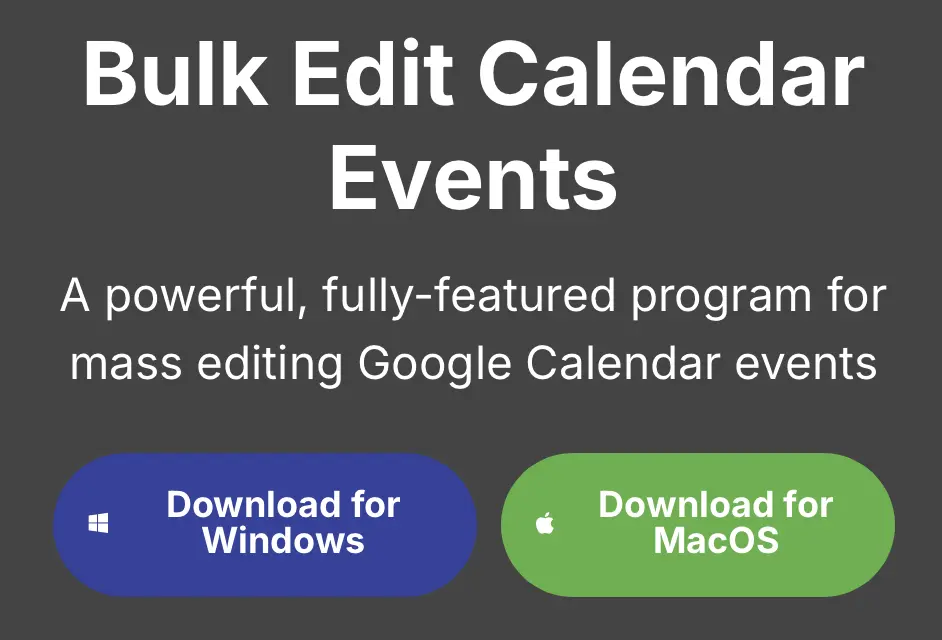
Download Bulk Edit Calendar Events.
Install and launch it.
When adding WebCal.Guru content to your calendar application, the recommended way is to subscribe and let the application download updates automatically. This is how it works by default.
It is also possible to do this manually. The manual method involves downloading the calendar file and then importing that file into the calendar application. From WebCal.Guru point of view, these methods are identical and it is not possible to distinguish them from each other. They differ only how the calendar application handles them.
There are significant drawbacks to the manual method. When the data is imported manually, it is never updated. Second, if you import the events in your personal calendar (this is where they go by default), it is tedious to remove them.
Google Calendar does not have a feature to batch delete calendar events. This article provides instructions on how to do that with a free third party application.
Download Bulk Edit Calendar Events.
Install and launch it.
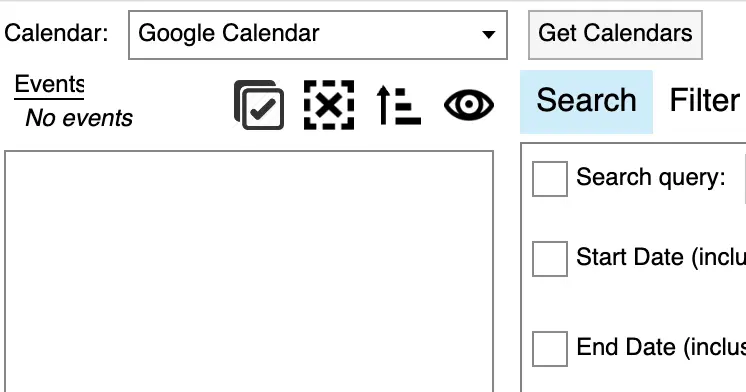
At the top left corner, make sure the correct calendar (usually Google Calendar) is selected.
Click Get Calendars.
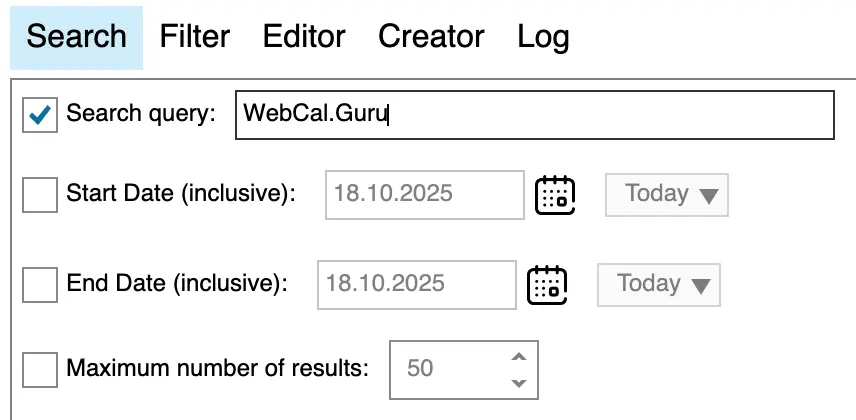
Click the checkbox Search query and enter a text which appears only in the events you wish to delete. For example, "WebCal.Guru".
Make sure Maximum number of results is not selected.
Click Get Events for Selected Calendar at the bottom right corner.
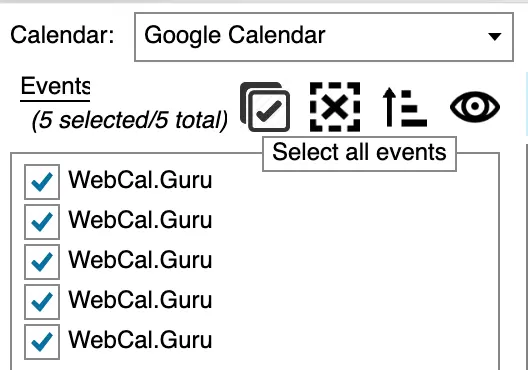
When you get the events on the left, click on the first icon in the top left with the tooltip Select all events.
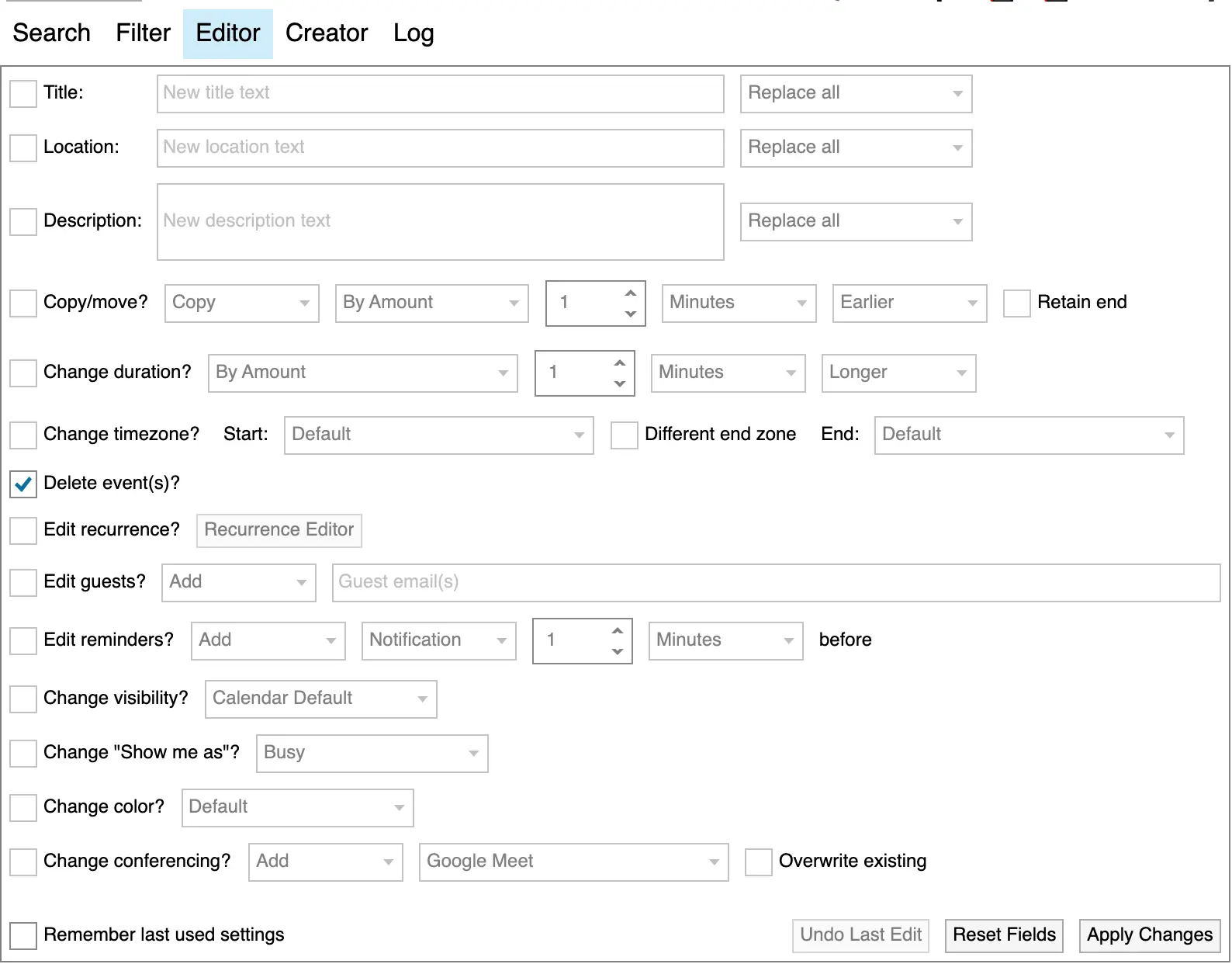
Go to the Editor tab and click on the checkbox Delete event(s).
Make sure that only the events you wish to delete are selected on the list in the left. You will not be able to undo the deletion.
Finally, click Apply Changes
The events should be now gone. Please considering making a donation to the author of Bulk Edit Calendar Events.
Updated 8 Dec 2025